
Rectangles are the most common shape of maps in GIS software, but why stop there?
In GIS software like ArcGIS Pro, it is possible to create map layouts in non-rectangular shapes without too much hassle. But that is not the case in QGIS (yet!), so let’s look at ways to make creative map shapes in QGIS.
In this post, I explain how to download a Sentinel 2 image from the Copernicus Open Access Hub. I want to use this image to make some unique map-layouts.
I want to make an NDVI map, so I take the NIR and Red bands from the image (band 8 and 4), add them to QGIS, and use the Raster Calculator to make an NDVI image
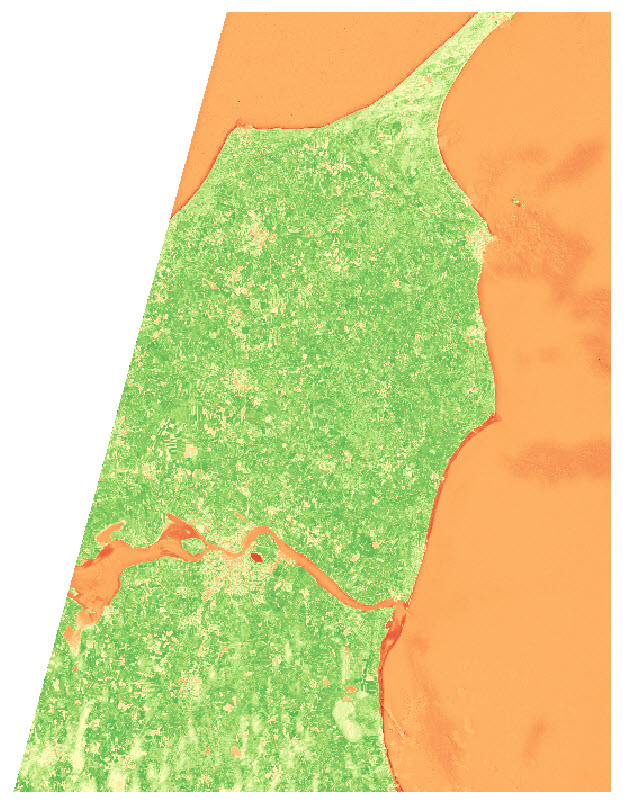
I use the latest country-border polygon from GADM to clip the raster layer
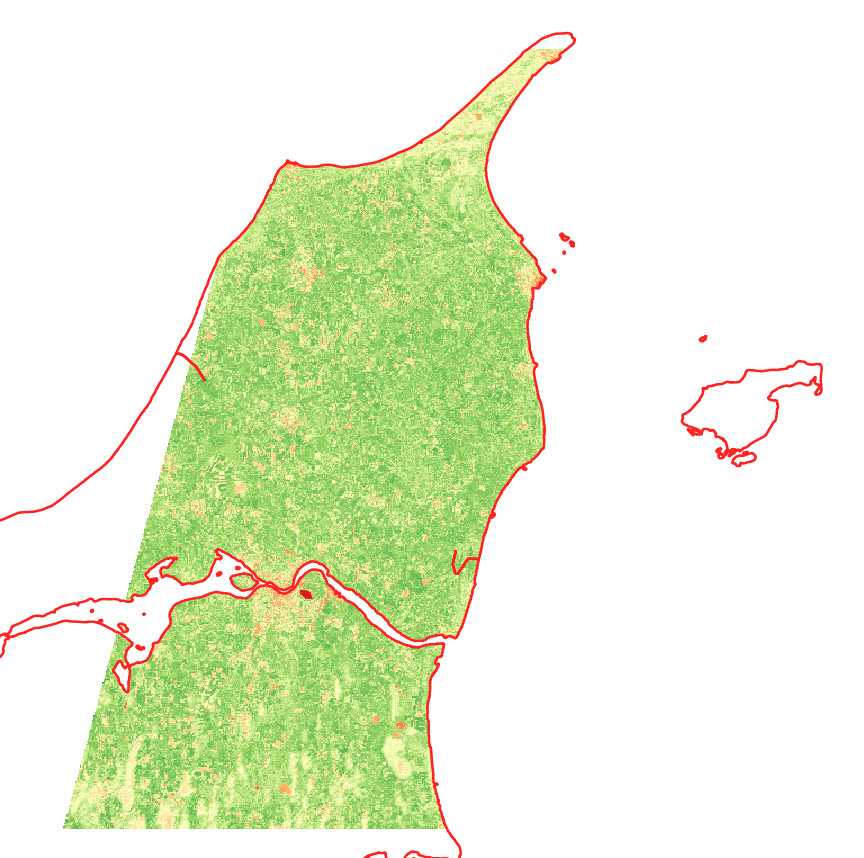
I want to show the NDVI data of the area near the city of Aalborg, in some different shapes.
I start by creating two polygon layers, and create a big polygon in one layer and a small polygon (near Aalborg) in the second layer . The small polygon is the one that will define the layout, so get creative!
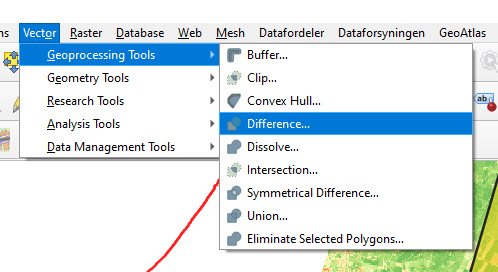
I use the Difference tool in QGIS to cut out the shape of the small polygon in the large polygon.
The outcome looks something like this:
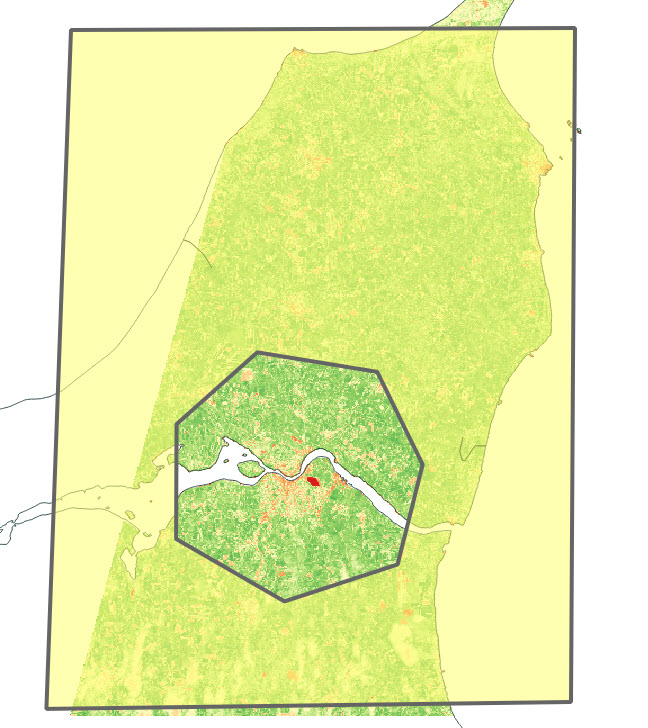
Depending on your creative skills, you can make some cool shapes. You can also import a pre-made polygon and use that instead.
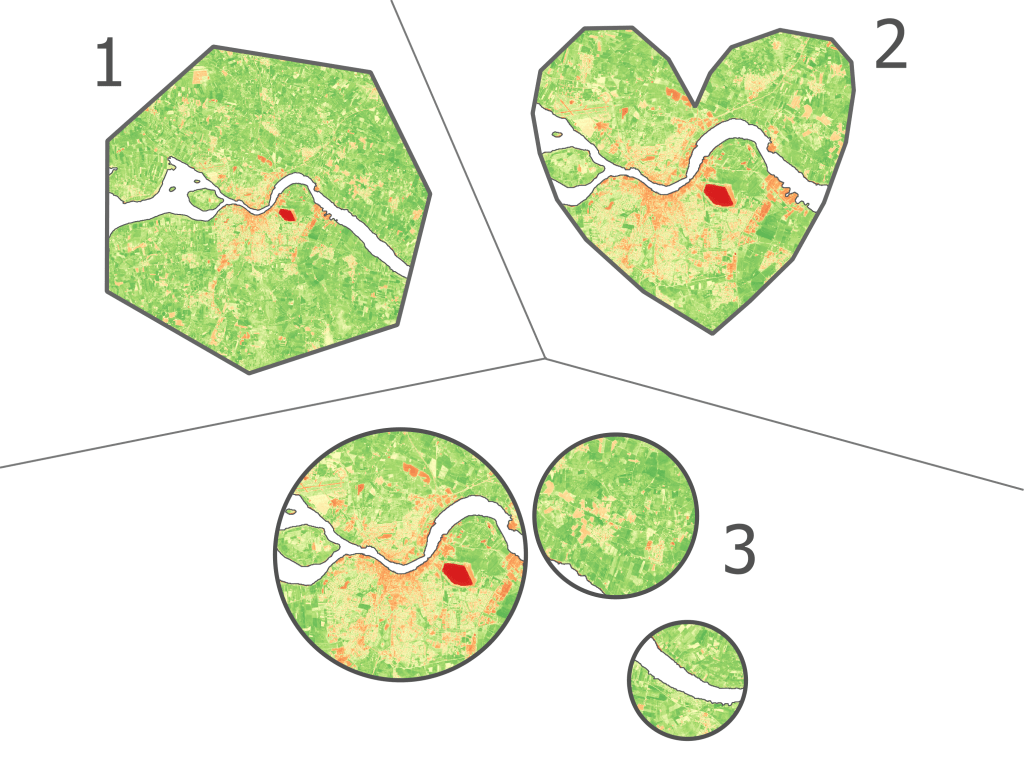
Here are the 3 versions I ended up with:
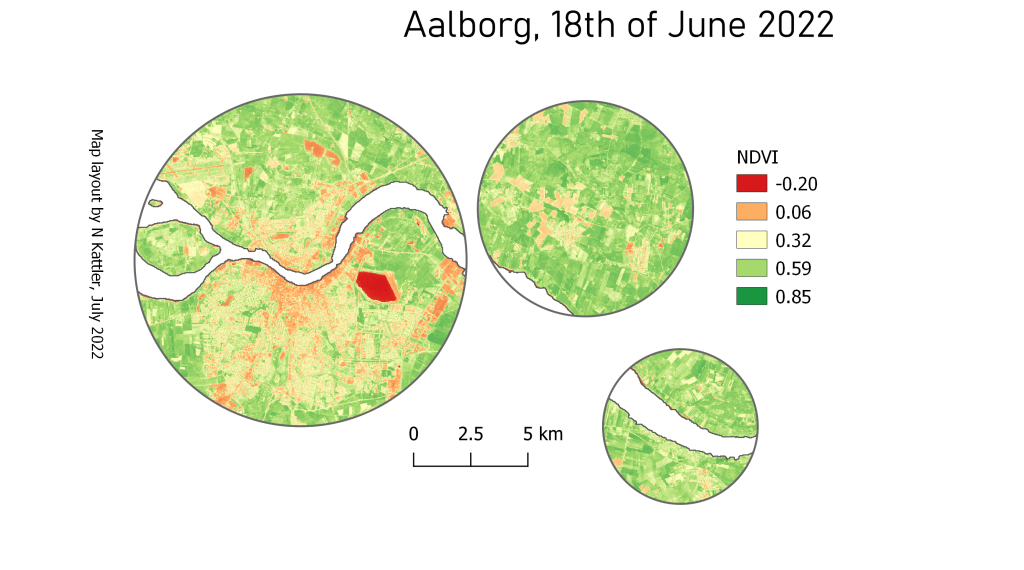
You can also add some of the classical map elements
 know your space