Calculate the percentage (%) cropland for each polygon in a shapefile [Google Earth Engine]

In a previous post, I use a similar script to calculate NDVI per polygon. However, this script includes a small difference which I have not yet myself understood why it was necessary.


As before, my shapefile consists of the administrative borders of Tanzania. I got this shapefile from the GADM database (version 3.6).

// Import administrative borders and select the gadm level 
// (0=country, 1=region, 2=district, 3=ward)
var gadm_level = '2';
var fc_oldID = ee.FeatureCollection('users/username/gadm36_TZA_'+gadm_level);
Map.addLayer(fc, {}, 'gadm TZA');
Map.centerObject(fc, 6);

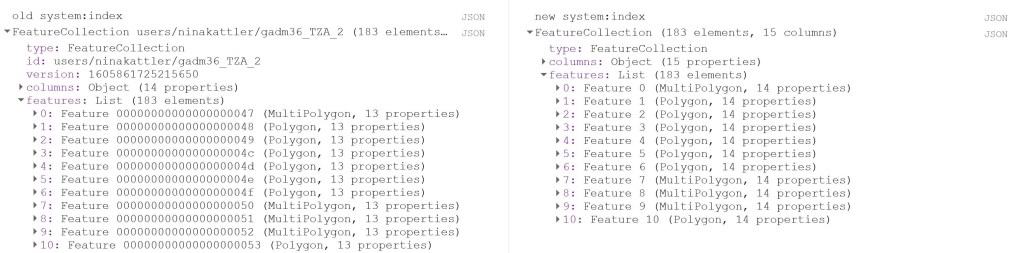
Now I change the system:index of the FeatureCollection.

Why do this at all? I was struggling to produce a mean value of the COPERNICUS landcover data, after having created a successful script for the MODIS NDVI dataset. When I ran the script, no mean column was created. However, I was able to calculate mean values from a couple of polygons that I created myself within Google Earth Engine, so I knew the problem had to be in the shapefile somehow. So I started to investigate the gadm asset (i.e. the shapefile) and saw that Google Earth Engine automatically assigns some odd index names to each feature (e.g. 000000000001 or 0000000000a). I used the following steps described by the user Kuik on StackExchange to change the system:index:

// Change the system:index ("ID")

var idList = ee.List.sequence(0,fc_oldID.size().subtract(1));

var list = fc_oldID.toList(fc_oldID.size());

var fc = ee.FeatureCollection(idList.map(function(newSysIndex){
  var feat = ee.Feature(list.get(newSysIndex));
  var indexString = ee.Number(newSysIndex).format('%01d');
  return feat.set('system:index', indexString, 'ID', indexString);
}));

print('new system:index', fc);

Now you can see that the system:index has been changed:
Now I load in the landcover data. Here I use the 100m resolution, yearly Copernicus Global Land Cover dataset. Here we can find an image per year from 2015-2019. This dataset has a long list of interesting bands, e.g. a land cover classification with 23 categories, percentage of urban areas and percentage of cropland. In this script, I will look at the percentage of cropland (crops-coverfraction) for different administrative regions in Tanzania. Read more about the COPERNICUS dataset here.

// Load data

var year = '2015'
var lc = ee.Image("COPERNICUS/Landcover/100m/Proba-V-C3/Global/"+year)
      .select('crops-coverfraction')
      .clip(fc)

print('Image from '+year, lc)

print('Projection, crs, and crs_transform:', lc.projection());
print('Scale in meters:', lc.projection().nominalScale());

The last two lines is a good way to get a bit more information about your data if you, like I was, are looking for a reason why your script is misbehaving. It will give you the following output:
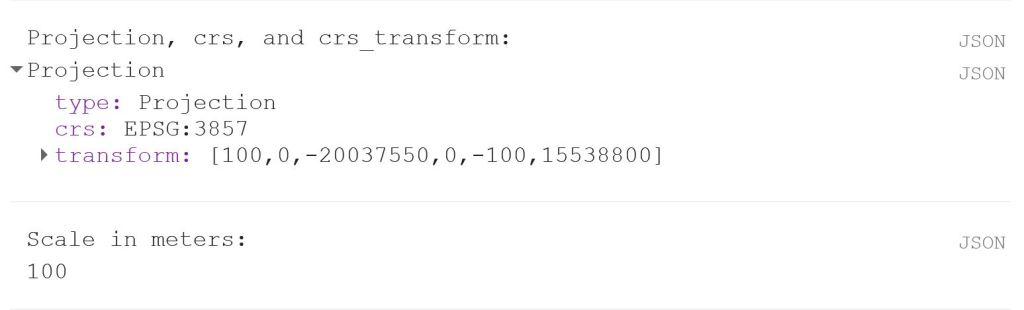
Now we can use the reducer reduceRegions. Again, remember that the scale should reflect the spatial resolution of the data. In the image above, we can see that the scale is 100 m.

// Reduce regions
var MeansOfFeatures= lc.reduceRegions({
  reducer: ee.Reducer.mean(),
  collection: fc,
  scale: 100,
})

print('gadm mean', ee.Feature(mean.first())) // Test if mean is produced

// Set visualization parameters    
var lcVis = {
  min: 0.0,
  max: 100.0,
  palette: [
    'ffffff', 'fcd163', '99b718', '66a000', '3e8601', '207401', '056201',
    '004c00', '011301'
  ],
};

Map.addLayer(lc, lcVis, 'crop cover (%) '+year)

// Export the featureCollection (table) as a CSV file
Export.table.toDrive({
  collection: MeansOfFeatures,
  description: 'proba_V_C3_TZA_adm'+gadm_level+'_'+year,
  folder: 'GEE output',
  fileFormat: 'CSV'
});

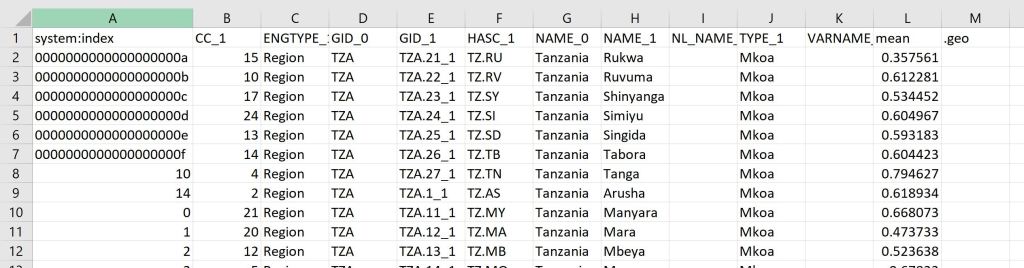
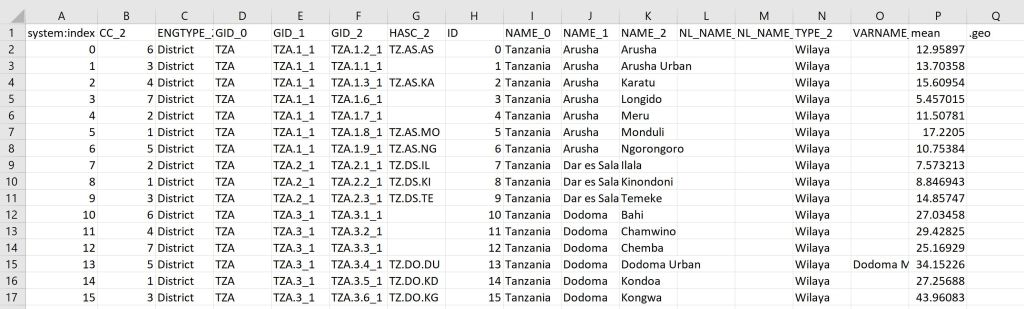
This should give you the following output:

You can find the full script here.
Calculate a mean NDVI value for each polygon in a shapefile [Google Earth Engine]

To run this script, you must have uploaded a shapefile to your Google Earth Engine account (an “Asset”). In my case, I am using the administrative borders for Tanzania. This dataset comes in three different levels. You can find that kind of data in the GADM database (version 3.6).

// Import administrative borders and select the gadm level 
// (0=country, 1=region, 2=district, 3=ward)
var gadm_level = '1';
var area = ee.FeatureCollection('users/username/gadm36_TZA_'+gadm_level);
print('area', area);
Map.centerObject(area, 6);
Map.addLayer(area, {}, 'area');

Next, you set the date of the period that you are interested in.

// Set the date
var year = '2019'
var startdate = year+'-01-01';
var enddate = year+'-12-31';

print(startdate)

Now I load in the NDVI data. Here I use the 250m resolution, 16-day Vegetation Indices product from MODIS (MOD13Q1.006). This dataset has a pre-calculated NDVI band, so I don’t have to first do the calculation to NDVI from the NIR/Red bands. However, in Earth Engine, the scale is 0.0001, so we need to correct that scale to get values in the order that we are used to deal with (from -1 to 1).

// MODIS NDVI scale is 0.0001, so we need to correct the scale
var NDVI = function(image) {
  return image.expression('float(b("NDVI")/10000)')
};

var modis = ee.ImageCollection('MODIS/006/MOD13Q1')
  .filterBounds(area)
  .filterDate(startdate,enddate);

// Now we select only the NDVI from the list of bands
var modisNDVI = modis.map(NDVI)
print('MODIS after .map', modisNDVI) 

Now we have the variable modisNDVI which is an ImageCollection. The ImageCollection contains a list of images that are within the start date and end date that we have specified in the beginning.

Now we’ll create a mosaic from this ImageCollection. You can read more about what a mosaic is here.

var mosaic = modisNDVI.mosaic()
  .clip(area);
print('mosaic', mosaic);

Another thing we could have done is to take the mean:

var mean = modisNDVI.mean()
  .clip(area);
print('mean', mean);

However, at least in my case, this takes much longer to compute.

Next, we set the visualisation parameters and add the mosaic to the map.

// Set visualisation parameters
var colour = {
 min: 0.0,
 max: 1.0,
 palette: [
 'FFFFFF', 'CE7E45', 'DF923D', 'F1B555', 'FCD163', '99B718', '74A901',
 '66A000', '529400', '3E8601', '207401', '056201', '004C00', '023B01',
 '012E01', '011D01', '011301'
 ],
};

Map.addLayer(mosaic, colour, 'spatial mosaic');

Now I use reduceRegions to get a value for each polygon (or region) in the shapefile. Remember that the scale should represent the spatial resolution of the dataset. Print out the result of the first polygon to make sure that you now have a column called “mean”.

// Add reducer output to the Features in the collection.
var MeansOfFeatures = mosaic.reduceRegions({
  collection: area,
  reducer: ee.Reducer.mean(),
  scale: 250,
});

print(ee.Feature(MeansOfFeatures.first()))

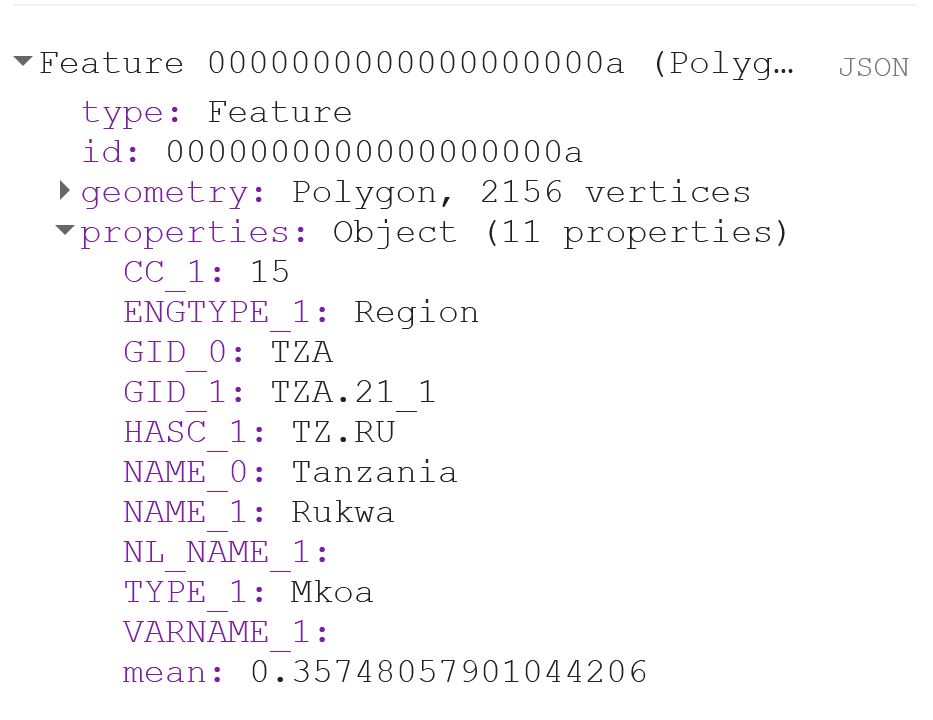
That should look something like this:

If you export the Feature now, you will notice that you get a column called “.geo“, which can become quite annoying if you are working with Excel, or just want your output to look nice. The .geo column contains the geometry, i.e. the XY coordinates, of each and every point of each and every polygon. This takes up a lot of space and is usually not data that you are interested in.
The user Rodrigo E. Principe gave a simple solution to get rid of the .geo-column in this post on StackExchange:

// Remove the content of .geo column (the geometry)
var featureCollection = MeansOfFeatures.map(function(feat){
  var nullfeat = ee.Feature(null)
  return nullfeat.copyProperties(feat)
})

Now we can export our output:

// Export the featureCollection (table) as a CSV file to your Google Drive account
Export.table.toDrive({
  collection: featureCollection,
  description: 'modis250_ndvi_TZA_adm'+gadm_level+'_'+year,
  folder: 'GEE output',
  fileFormat: 'CSV'
});

Your output will look something like this:

You can see the code in its entirety here.