How to make a non-rectangular map layout in QGIS

Rectangles are the most common shape of maps in GIS software, but why stop there?

In GIS software like ArcGIS Pro, it is possible to create map layouts in non-rectangular shapes without too much hassle. But that is not the case in QGIS (yet!), so let’s look at ways to make creative map shapes in QGIS.

In this post, I explain how to download a Sentinel 2 image from the Copernicus Open Access Hub. I want to use this image to make some unique map-layouts.

I want to make an NDVI map, so I take the NIR and Red bands from the image (band 8 and 4), add them to QGIS, and use the Raster Calculator to make an NDVI image
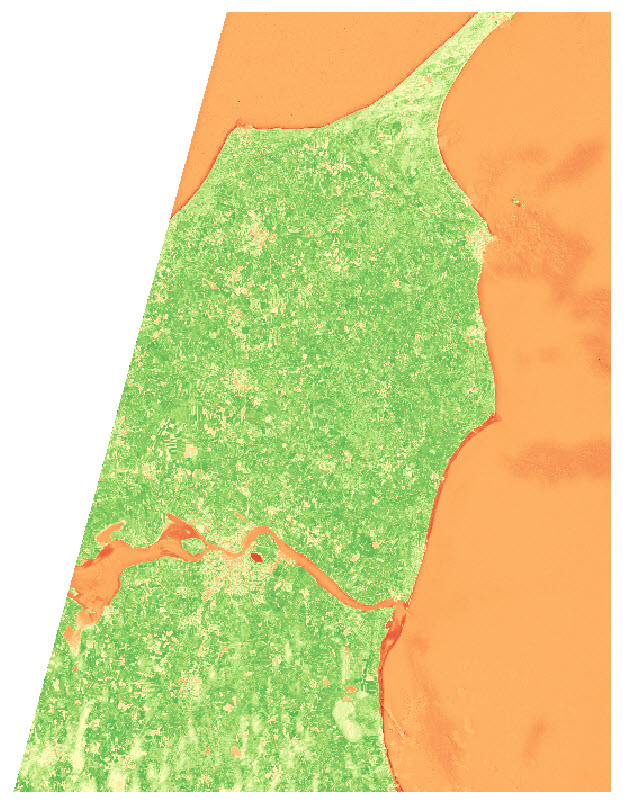
I use the latest country-border polygon from GADM to clip the raster layer
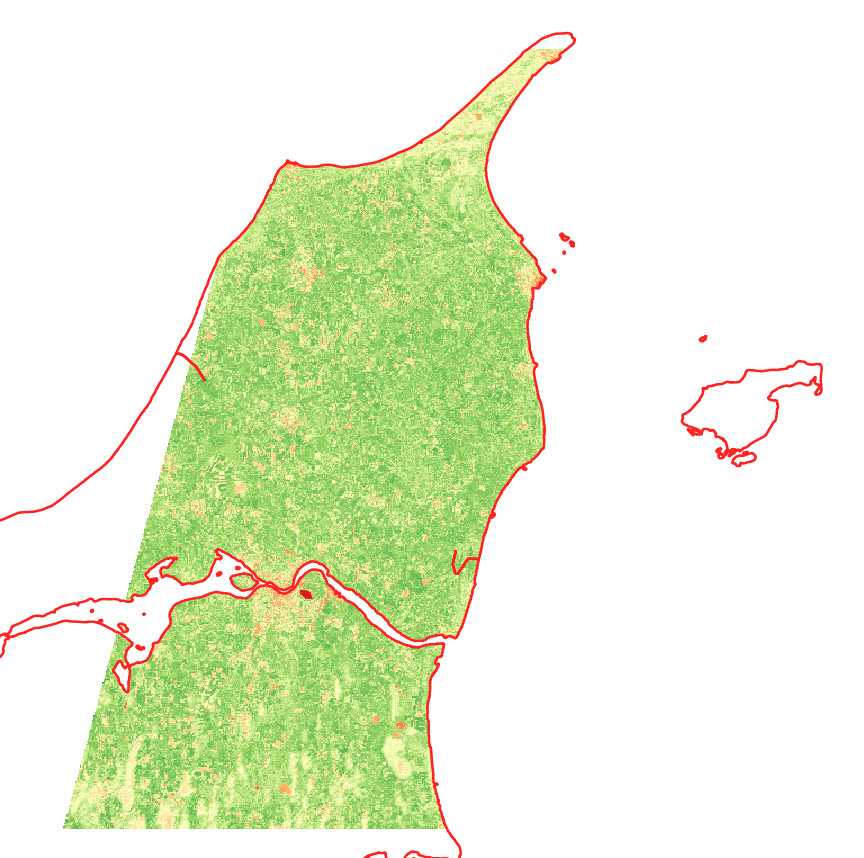
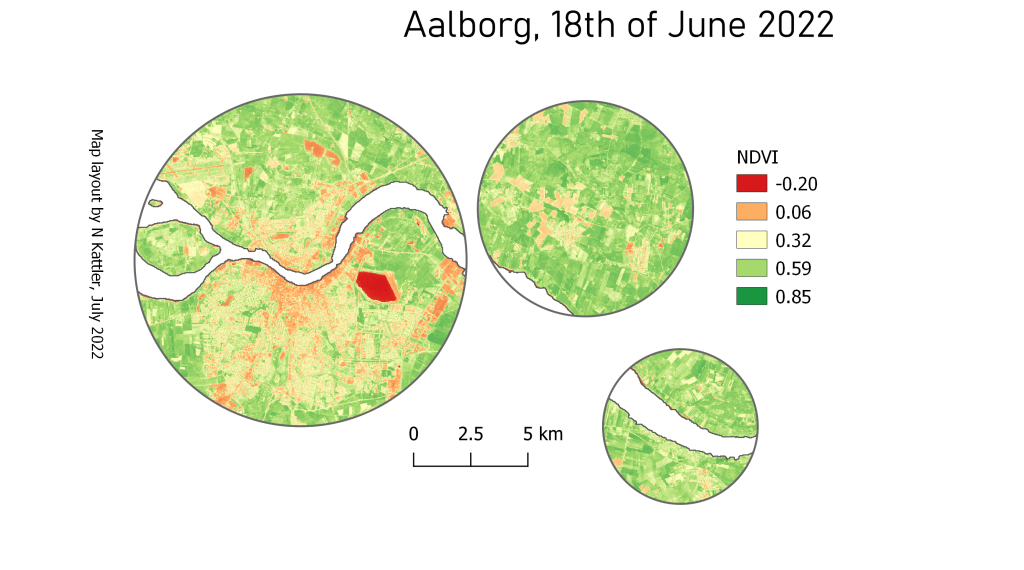
I want to show the NDVI data of the area near the city of Aalborg, in some different shapes.

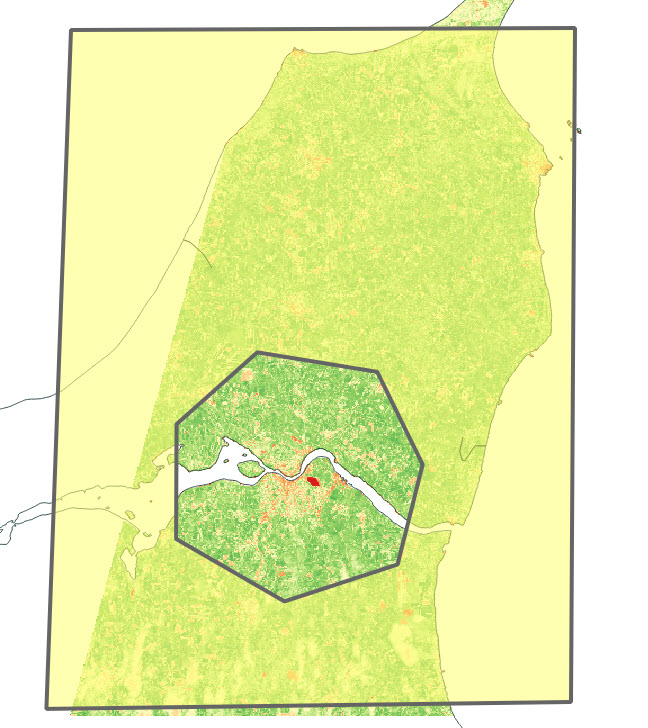
I start by creating two polygon layers, and create a big polygon in one layer and a small polygon (near Aalborg) in the second layer . The small polygon is the one that will define the layout, so get creative!

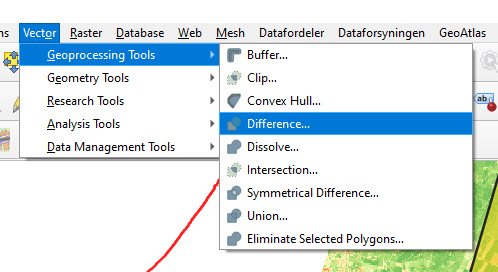
I use the Difference tool in QGIS to cut out the shape of the small polygon in the large polygon.
The outcome looks something like this:
Depending on your creative skills, you can make some cool shapes. You can also import a pre-made polygon and use that instead.

Here are the 3 versions I ended up with:
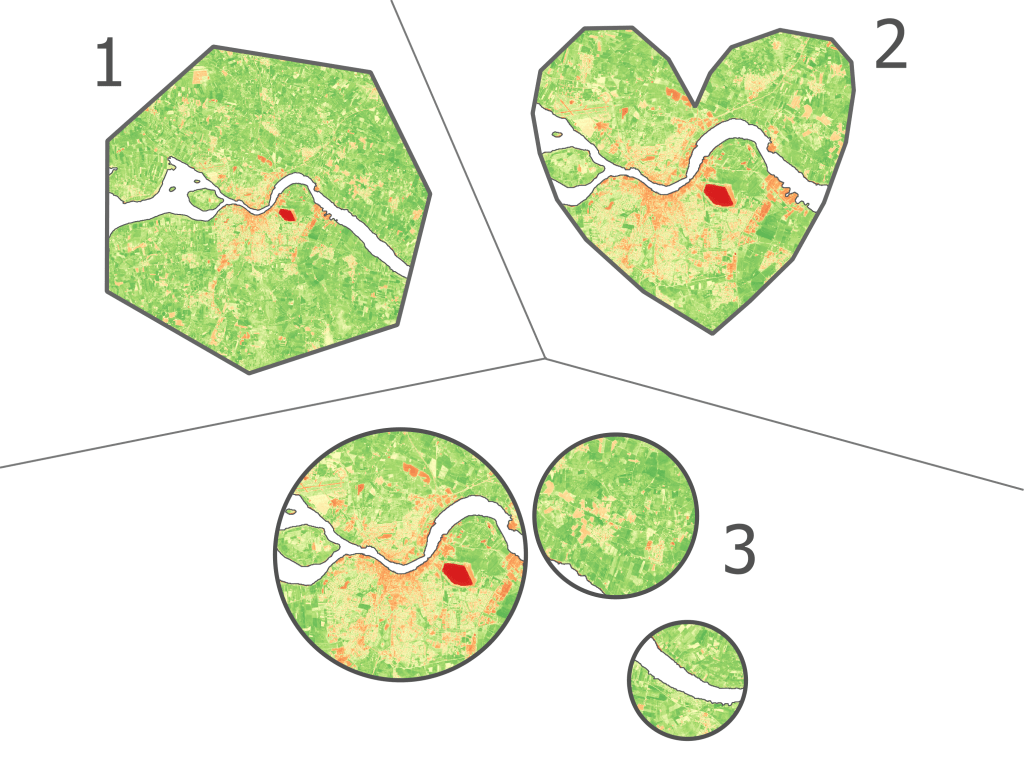
You can also add some of the classical map elements
How to download a satellite image from Copernicus Open Access Hub

Personally I don’t find the Copernicus Open Access Hub very intuitive to use, so I wanted to provide an example of how I download data from the website.

For this example I want to download a single Sentinel 2 (A or B) image from the northern part of Jutland in Denmark. I want it to be cloud free and it should be as recent as possible.

Here’s how I would do that:

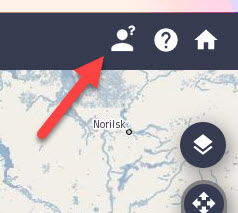
1. Login to Copernicus Open Access Hub by clicking the confused looking person in the top right corner

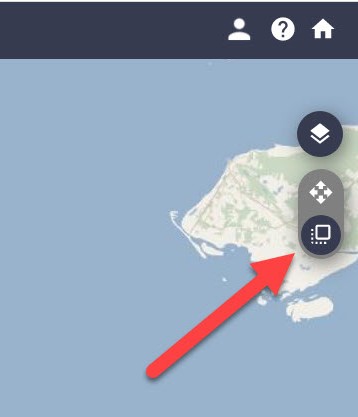
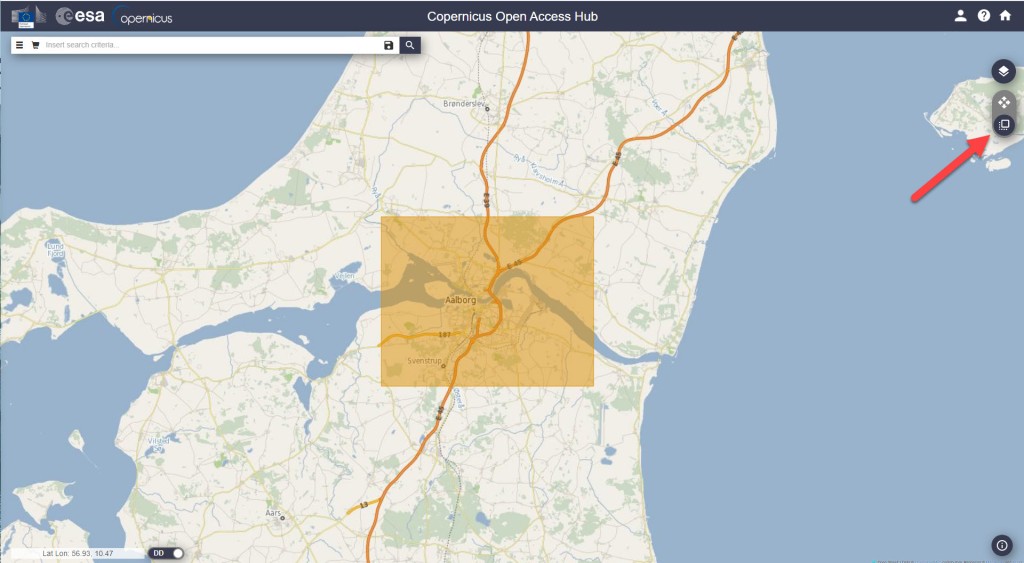
2. Click on “Switch to Navigation Mode” in order to select the area that you are interested in

3. Select the area

4. Click on the filter-button left of the search bar, and make the following selections:

  • Select Sort by : Sensing date
  • Select the time period you are interested in (choose Sensing period)
  • Select the Sentinel satellite mission you want data from
    Tip: If e.g. you just want any image from Sentinel 2, you don’t have to select anything in the Satellite platform dropdown, just leave it empty.
  • Select cloud cover % if that is relevant. For Sentinel 2, I usually set the cloud cover very low, e.g. “[0 to 10]”.

5. Click on the search symbol in the top, and you should see a list of available images from your area.
If you don’t see any images, try to change the cloud cover or expand the selected time period.

6. Select the image that suits your needs and download it.
The download might take a while. The most recent image I downloaded took ~3 min to download and the size was ~0.6GB.

How a filter could look like

The image I ended up selecting

Once the download is finished, the next challenge is to find the raster files in the labyrinth of subfolders. I found mine here:

C:\Users\username\Downloads\S2B_MSIL2A_20220618T102559_N0400_R108_T32VNJ_20220618T121737\S2B_MSIL2A_20220618T102559_N0400_R108_T32VNJ_20220618T121737.SAFE\GRANULE\L2A_T32VNJ_A027590_20220618T102602\IMG_DATA

Here you can find three resolutions folders (R10m, R20m, R60m). In my case I chose R10m.

The data is in the JP2-format, which a program like QGIS should not have any problem reading.

That’s it — good luck with downloading data on your own!

If you want to see what I used the sentinel image for, you can read about it in this post.